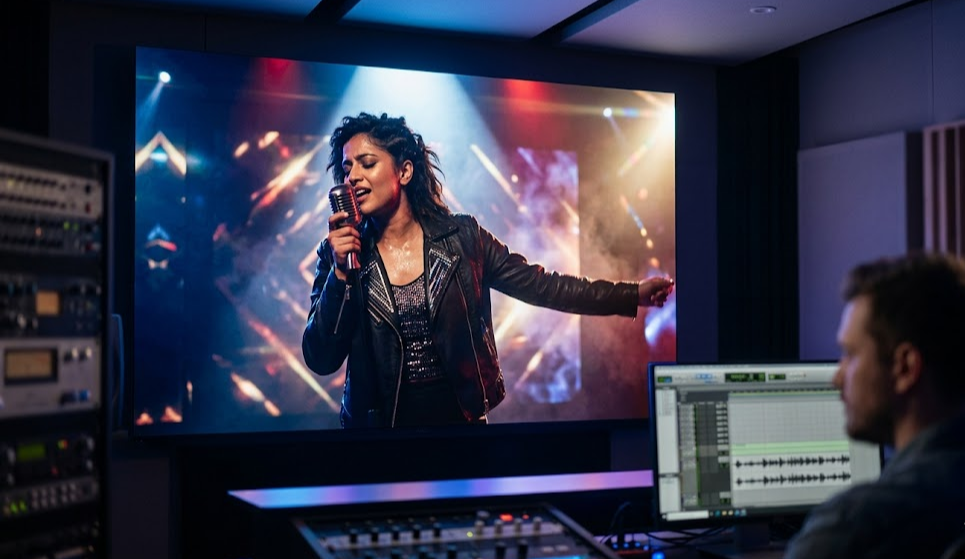
Making an AI music video used to mean picking one AI generator, wrestling it for 20 minutes, getting a 6-second clip that almost fits your track, and then giving up. That's changed. In 2026, you can produce a full-length music video—synced to your audio, consistent across scenes, actually watchable—without touching video editing software.
This guide covers how to do it with mstudio.ai, the AI filmmaking studio built for exactly this workflow.
What Makes AI Music Videos Hard
Before we get into the workflow, it's worth understanding why most people fail at AI music videos:
- Clip length mismatch. Runway, Kling, Sora—they all generate 4–15 second clips. A 3-minute song needs 12–45 separate clips, minimum.
- No visual continuity. Generate 40 clips from the same prompt and you get 40 different characters, lighting setups, and color grades. It looks like a compilation, not a video.
- No timeline control. You can't sync cuts to beat drops when you're downloading individual MP4s and stitching them in Premiere.
- No audio-reactive tools. Most AI video tools don't even let you import your audio track to edit against it.
mstudio solves all four problems in one interface.
The mstudio AI Music Video Workflow
Step 1: Upload Your Audio Track
Start a new project and import your audio file—WAV, MP3, AAC, whatever you've got. mstudio shows you the waveform across the timeline, so you can see your verse/chorus structure immediately. This is your editing backbone.
Mark your beat drops, chorus points, and transitions manually or let the BPM analyzer do a first pass. These become your cut points.
Step 2: Define Your Visual Language
Before generating a single frame, write a style document for your video. This is the key to visual consistency:
- Color palette — "neon blue and black", "warm golden hour", "desaturated film noir"
- Subject — who or what is in every shot? A character description, a location, or an abstract visual motif
- Camera style — handheld, smooth drone, static wide
- Visual references — "like a Blade Runner 2049 trailer" or "like a lo-fi study channel aesthetic"
In mstudio, you set this as your project-level prompt context. Every clip you generate within the project inherits this context. When you change a clip's specific prompt, the style stays locked.
Step 3: Generate Scene by Scene
Work section by section through your song. For each section (intro, verse 1, chorus, etc.):
- Decide how many shots you need based on the section length and your edit rhythm
- Write a specific scene prompt for each shot (what's happening, camera angle, movement)
- Choose your AI model—Kling 3.0 for realistic motion, Runway Gen-3 for stylized looks, Sora 2 for cinematic scale
- Generate and review in the mstudio preview player, which plays the clip against your audio in real time
You're not jumping between browser tabs or managing a folder of MP4s. Everything lives on the timeline.
Step 4: Cut to the Beat
With clips on your timeline and the audio waveform visible, drag clip edges to hit your cut points. mstudio snaps to beat markers automatically if you marked them in Step 1.
For chorus sections, tighter cuts (every 1–2 beats) feel high-energy. For verses, longer clips with slow camera movement land better emotionally. You can swap any clip—just right-click, regenerate with a different prompt or model—without rebuilding your whole timeline.
Step 5: Add BGM and Sound Design
If you want ambient sound under your track (crowd noise, environmental audio, sfx), mstudio has a built-in audio layer. Import secondary audio files and layer them under your main track at whatever volume blend you want.
This is the feature most AI music video tutorials skip entirely—but it's what separates a video that "plays" from one that feels immersive.
Step 6: Color Grade and Export
Apply a project-level color grade to normalize all your clips. Even if you mixed multiple AI models (some of which have dramatically different default color profiles), a single LUT-style grade pulls everything together.
Export at 1080p or 4K. mstudio outputs a single MP4—no manual clip merging, no Adobe Media Encoder queue.
Which AI Model Should You Use?
mstudio lets you mix models within a single project. Here's a quick reference:
- Kling 3.0 — Best for realistic human subjects and natural motion. Great for performance-style music videos with a singer or band.
- Runway Gen-3 Alpha — Best for stylized, cinematic looks and smooth camera movements. Strong on visual effects and non-realistic aesthetics.
- Sora 2 — Best for large-scale cinematic shots, dramatic environments, and anything that needs visual weight. Slower but worth it for establishing shots.
- Pika 2.1 — Best for quick iteration on short clips. Useful for cutting between many fast shots in an energetic chorus.
A common pattern: use Sora for your cinematic establishing shots, Kling for any performance footage, and Runway for stylized transitions. mstudio lets you manage all of these in one timeline instead of four separate browser tabs.
Tips for Better AI Music Videos
Keep Prompts Minimal for Consistency
The more specific your per-clip prompts get, the more they'll drift from your project style. Write 5-word scene descriptions ("close-up, singer in rain, blue light") rather than 50-word paragraphs. Let the project context do the heavy lifting on style.
Use Camera Movement Strategically
Static shots work in choruses when your cuts are fast. Moving shots (slow push-in, orbit, handheld) work in verses where you need 8–10 seconds of visual interest without a cut. Don't randomize camera movement—it kills continuity.
Generate 2–3 Versions of Key Shots
For your chorus hero shot—the one image that defines the whole video—generate 3 options and pick the best. Costs you 30 seconds. Saves you the regret of shipping the "good enough" version.
Time Your Cuts to Downbeats, Not Upbeats
Cutting on the downbeat of each bar feels natural. Cutting on the upbeat creates tension. Both are valid—but randomizing cut points makes editing feel accidental. Pick one approach per section.
How Long Does It Actually Take?
A 3-minute music video with 30–40 cuts takes about 2–4 hours in mstudio, depending on how many regenerations you do. Compare that to:
- Generating clips manually across 4 tools: 4–6 hours just for the raw material
- Stitching in Premiere: another 2–3 hours
- Color grading to normalize different AI model outputs: 1–2 more hours
The math is obvious. mstudio cuts the total time by 60–70% by removing every manual transfer step.
Get Started
If you've been stalling on your AI music video because the workflow felt too broken, that excuse is gone. Start a free project on mstudio.ai, import your track, and build your first scene.
The tools are already there. You just need to use them in the right sequence.