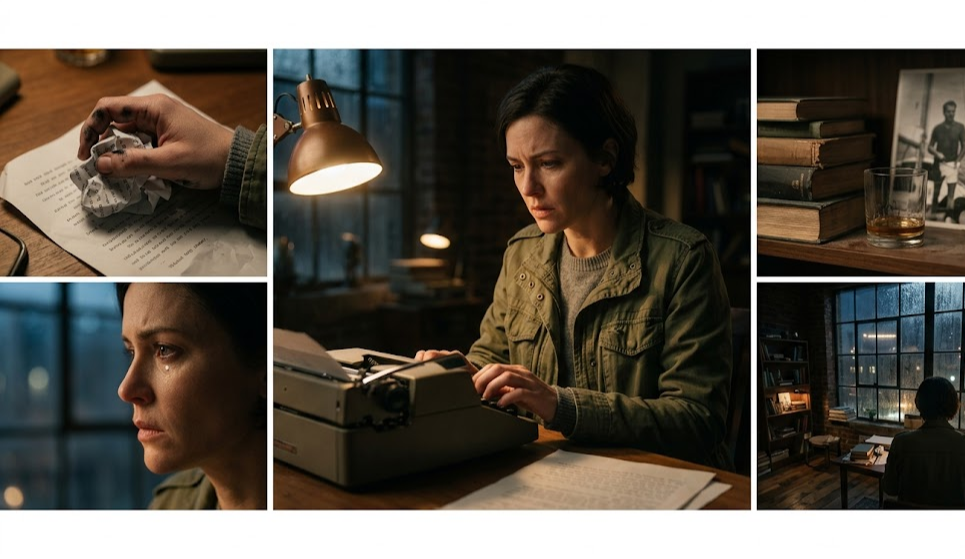
Every filmmaker hits the same wall: your primary footage tells the story, but the scene needs texture. Reaction shots. Environmental detail. Cutaways that show the world your subject lives in. Traditional b-roll means an extra shoot day, a second camera operator, or stock footage that looks nothing like your primary footage.
AI b-roll generators change this math. You can generate clips that match your visual style, your color palette, and your scene's lighting — without leaving your edit bay. This guide covers how filmmakers are using AI-generated b-roll in 2026, what works, what doesn't, and how to build a workflow that makes your cuts feel intentional.
What Makes AI-Generated B-Roll Different
Stock footage has always been a compromise. The clip exists; it's technically fine; it doesn't match. AI-generated b-roll starts from your prompt, which means you control the visual language from the start.
The practical difference:
- Color matching — describe your grade in the prompt. "Warm afternoon light, teal shadows, slight film grain" gets you closer to your primary footage than any stock library.
- Subject specificity — "hands typing on a mechanical keyboard in a dim office" instead of "person using computer." The level of detail you can specify in AI prompts doesn't exist in stock footage search.
- Duration control — generate exactly the clip length you need for the cut. No trimming 30-second stock clips to find the 2 seconds you want.
- Stylistic consistency — use the same model and similar prompt structure across your b-roll set. The visual consistency stock footage can't provide.
The tradeoff: AI video generation has motion artifacts, texture inconsistencies, and limits on what physics looks like. B-roll — by definition — is background support, not foreground storytelling. This is where AI video works best: you're not asking viewers to scrutinize it frame by frame.
5 B-Roll Use Cases Where AI Outperforms Stock
1. Environmental Establishing Shots
You shot your interview in an office, but you need the viewer to understand the city where it happened. "Aerial shot of downtown São Paulo at dusk, golden hour, financial district, slow dolly movement" gives you something no stock library has at that specificity. The motion stays slow, the detail is in the background — artifacts don't matter.
2. Abstract Concept Visualization
Documentaries and explainers constantly need to visualize things that can't be filmed: data moving through networks, molecules interacting, economic trends. AI-generated b-roll handles the abstract better than stock because you can describe exactly what the metaphor needs to look like.
3. Cutaways for Talking Head Interviews
Your subject talks about "a challenging launch." You need something on screen besides their face. "Product dashboard showing real-time metrics, slight screen reflection, professional setting" — generated in 30 seconds, cut in 15. The cutaway doesn't need to be realistic at the microscopic level. It needs to support the audio and give the editor somewhere to cut.
4. Reaction and Texture Shots
Close-ups of hands, objects in foreground, environmental texture. These clips are 1-3 seconds in the final cut. They're also the shots that elevate a scene from flat to cinematic. AI generates these at the granularity of your prompt.
5. Historical or Impossible Scenes
You're making a documentary about the 1990s tech boom. Stock footage exists, but it's expensive and everyone uses the same clips. AI can generate new visual interpretations of the period — not documentary footage, but interpretive b-roll that frames the story you're telling.
Prompt Patterns That Work for B-Roll
B-roll prompts are different from hero shot prompts. You're not trying to generate something photorealistic that stands on its own — you're trying to generate something that serves the cut.
Patterns that consistently produce usable b-roll:
Environment + Time + Motion
[subject or environment], [time of day/lighting condition], [camera movement]
Examples:
- "Empty boardroom, natural window light, slow zoom out"
- "City street at night, neon signs reflected in wet pavement, slight handheld movement"
- "Server room, blue LED ambient light, static wide shot"
Object + Detail + Framing
[specific object], [detail level], [shot type]
Examples:
- "Stack of papers on desk, shallow depth of field, close-up"
- "Coffee cup in hand, steam rising, medium close"
- "Laptop keyboard in foreground, blurred monitor in background, macro"
Style Anchoring
Add your grade description to every b-roll prompt in a project. This creates visual cohesion across clips generated at different times:
"[scene description] | cinematic, warm color grade, slight vignette, 24fps look"Building a B-Roll Workflow That Scales
Generating one clip is easy. Building a b-roll library for a full project requires workflow structure.
Step 1: Create a B-Roll Brief
Before you generate anything, document what the scene needs. For each major section of your edit:
- What concept or emotion needs visual support?
- How long is the section where b-roll will appear?
- What's the grade / visual language of the primary footage?
This brief becomes your prompt document. Each row is a b-roll clip to generate.
Step 2: Generate in Batches
Generate your full b-roll set at once, not one at a time as you edit. This keeps your prompt language consistent and lets you review all clips against each other before they hit the timeline.
Step 3: Review for Motion Quality
AI-generated clips vary in motion quality. Watch each clip on loop before adding to your library. The criteria for b-roll: does it hold for the duration you'll use it in the cut? A 2-second clip with a good 1.5 seconds of clean footage is usable.
Step 4: Assemble in Your NLE
Generated clips are raw material. The final step is assembly — timing your b-roll cuts to the audio, matching the motion to the edit rhythm, color-correcting generated clips to match your primary footage grade.
This is where mstudio.ai's filmmaking workflow connects all the pieces: from generation through assembly without jumping between five different tools. You're not just generating clips — you're building a film.
What AI B-Roll Can't Do (Yet)
Honest limitations matter for production planning:
- Consistent character faces — AI video generation doesn't maintain face consistency across clips. B-roll works here because you typically don't use the same character face as b-roll (that's your A-roll). Environmental and abstract b-roll sidesteps this entirely.
- Complex physics — water, fire, fabric, and crowd movement are harder. Simple, controlled environments generate cleaner.
- Very long clips — most AI video models max at 5-10 seconds before quality degrades. For b-roll, this is fine — you rarely use more than 3-4 seconds of a b-roll clip in a cut.
- Seamless handheld motion — if you want realistic camera movement, start with near-static camera in the prompt and stabilize in post if needed.
Tools in 2026
The AI video generation landscape in 2026 includes several capable models. The practical consideration isn't which model is "best" in benchmarks — it's which model works in a production workflow:
- Kling AI — strong on environment and texture shots, widely used for commercial b-roll
- Runway Gen-3 — consistent motion quality, good at cinematic framing
- Stable Video — via ModelsLab API for teams that want programmatic generation at scale
- Luma Dream Machine — good for abstract and stylized content
The workflow problem isn't access to these models — it's assembly. Generated clips sit in download folders, each from a different tool, in different formats, with no way to preview them against the cut you're building. That's the problem mstudio.ai solves: a single workspace where generation and editing happen in the same interface.
Getting Started
If you're adding AI b-roll to an existing project:
- Pull your rough cut, identify the 5-10 sections where you need b-roll support
- Write a one-line prompt for each, including your grade description
- Generate a batch, review on loop, select the cleanest clips
- Drop into your timeline and adjust timing to match the audio
The learning curve is in prompt writing, not in the tools. Once you have a prompt structure that works for a project's visual language, b-roll generation becomes a fast, repeatable step in your pipeline.
Build your AI film in mstudio.ai
Generate b-roll, assemble your cut, and export — all in one workspace built for AI-native filmmaking.
View pricing →