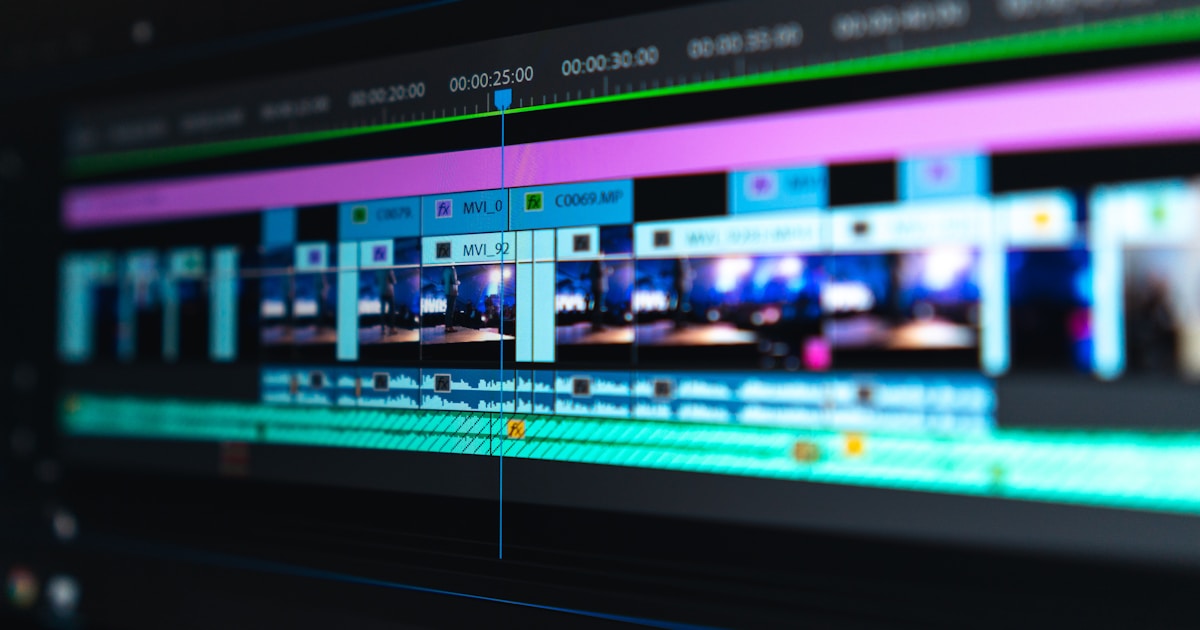
You've been using After Effects wrong for AI video — and it's not your fault. The standard workflow that emerged in 2024 goes like this: generate clips in Runway or Kling, download them individually, import into After Effects, manually align audio, stitch in the timeline, export. It works, but it's three tools, six export steps, and an hour of busywork for two minutes of film.
There's a reason nobody talks about this gap publicly: every AI video tool stops at the generation layer. They hand you a file and leave. What happens next is your problem.
mstudio.ai solves this — it's the only AI filmmaking platform with native After Effects sync built into the production workflow. This guide explains how the workflow actually works and where the time savings stack up.
Why the Current AI Video + After Effects Workflow Is Broken
After Effects wasn't designed for AI-generated footage. It was built for compositing, motion graphics, and visual effects — tasks where you have a predictable file structure and precise frame rates. AI video models don't play by those rules.
Runway Gen-4.5 outputs variable frame rate MP4s. Kling 3.0 uses H.264 with inconsistent color profiles depending on the prompt complexity. Sora 2 gives you 1080p clips that may or may not match the aspect ratio of your previous shot. Every generator has different output specs, and After Effects handles each one differently.
The result: filmmakers spend 40-60% of their production time on file management, not filmmaking. One independent creator tracked this across a 10-minute short in November 2025: 11 hours total production time, 6 hours of that was import/sync/export overhead. Four hours of actual creative work.
That's not a workflow — that's a tax on creativity.
What After Effects Sync Actually Means in mstudio.ai
mstudio.ai approaches this differently. Instead of treating After Effects as the final destination for your footage, it treats it as one output target in a broader production pipeline.
Inside mstudio.ai, you work on a unified timeline where clips from different AI generators (Runway, Kling, Luma, Pika — all of them) live together. You add BGM, SFX, and scene transitions directly in the interface. When your edit is locked, you export to After Effects with a single action — and the export respects AE's file structure expectations: consistent frame rates, normalized color profiles, and an organized project file you can open without hunting for assets.
The practical result: what used to be 6 hours of AE import overhead becomes about 20 minutes. The creative layer — the actual editing decisions — is where your time goes.
The Filmmaker Workflow: Step by Step
Step 1 — Generate Your Shots in Any AI Model
mstudio.ai integrates directly with the major AI video generators. You can prompt Runway Gen-4.5, Kling 3.0, Luma Dream Machine, and Pika 2.2 from inside mstudio.ai without switching tabs. Each generated clip lands directly in your project library — no download, no manual import.
# What you're NOT doing anymore:
1. Open Runway tab → generate → wait → download .mp4
2. Open Kling tab → generate → wait → download .mp4
3. Open your Downloads folder → drag files to desktop
4. Open After Effects → File > Import > Multiple files...
5. Rename, organize, set frame rate, handle color profile mismatch

# What mstudio.ai gives you instead:
→ Generate all shots in one interface
→ Clips auto-populate your project timeline
→ Move to editing immediately
Step 2 — Orchestrate Your Timeline
The mstudio.ai timeline is built for multi-shot AI projects. You can sequence clips, trim, add scene-level pacing controls, and layer audio (BGM, SFX, voiceover) without leaving the platform. This is the layer that After Effects was never optimized for — managing dozens of AI-generated clips with different visual styles and stitching them into something cohesive.
Key timeline features that matter for AE users:
- Shot-level metadata preservation — every clip retains its source model, prompt, and generation timestamp. When you export to AE, this metadata comes with it as comments on the AE layers.
- Multi-model color normalization — mstudio automatically normalizes color profiles across clips from different generators before export. No more mismatched whites between your Runway and Kling shots.
- Audio track separation — BGM, SFX, and dialogue layers export as separate AE tracks, not flattened into the video. If you need to adjust mix levels in AE, you can.
Step 3 — Export to After Effects
The After Effects export creates a properly structured AE project file (.aep) with:
- All video clips organized in labeled bins (by scene, by source model)
- A pre-built composition matching your mstudio.ai timeline
- Separated audio tracks with correct sample rates
- Consistent 23.976 fps (or your target frame rate) across all imported clips
From here, traditional AE workflows apply — color grading, title cards, visual effects overlays, any compositing work that needs the full power of the AE engine. The difference is you're starting from a clean, organized project instead of a pile of downloaded files.
Who This Workflow Is Actually For
Two types of creators get the most out of mstudio.ai's AE integration:
Professional Editors Who Added AI to Their Stack
If you've been a working editor for years and added AI generators to your toolkit in 2024-2025, you know After Effects. You're not replacing it — you need your AI output to plug into it cleanly. mstudio.ai gives you that bridge. Generate in any AI model, orchestrate in mstudio, deliver into AE without the import tax.
Indie Filmmakers Scaling Output
For shorts and feature-length AI films, scale is the problem. Managing 80+ clips across a 20-minute project in raw After Effects is a logistics challenge before it's a creative one. mstudio.ai's timeline handles the logistics — AE handles the finishing work. This is how you make a feature-length AI film without drowning in file management.
mstudio.ai vs. The Current Alternatives
No other AI filmmaking tool offers native AE sync. Here's how the options compare:
- Katalist.ai — image-to-video animatics, no AE export, targets pre-production not post
- LTX Studio — strong storyboarding, manual export to AE (no structured project file)
- Adobe Firefly Boards — imports directly into Premiere (Jan 2026), but this is a Premiere-first workflow, not AE-first
- Runway, Kling, Sora — generation only; handoff to your editor is manual
- mstudio.ai — orchestration + AE sync; the production layer the others skip
Adobe's move with Firefly Boards into Premiere is significant — Big Tech is acknowledging the integration gap. But it's Premiere-specific, subscription-locked, and optimized for Adobe's own generators. mstudio.ai works across generators and delivers into AE, which is where most serious compositing work happens.
Getting Started
The fastest way to see the workflow difference is to run a simple test: take a 3-shot sequence you've already made in After Effects the manual way. Rebuild it in mstudio.ai using the same generators. Track the time. Most users report 60-70% reduction in overhead time on their first project.
mstudio.ai is available at mstudio.ai/pricing. The free tier covers basic timeline editing and export. The full AE sync workflow is available on the Pro plan.
If you're an editor who's added AI to your stack and still fighting the import/export loop, this is the tool that closes the loop.